Virtual Microphone System
The Slate Digital Virtual Microphone System is a breakthrough product that brings a growing collection of world-class and indispensable microphone models to your studio at an extremely affordable price. This amazing experience is realized through a combination of a specially designed and optimized ML-series microphone along with our Virtual Microphone System software plug-in.
To fully understand and maximize the value of the VMS, please take the time to read through the contents of this user guide. While VMS is fairly straightforward and intuitive to use, there are some points in this guide that will ensure top performance and results.
Finally, please note that the Virtual Microphone System plug-in is designed to work exclusively with the ML-series hardware microphone. The plug-in will not unlock without the licenses provided with the hardware. This is because the microphone models in the plug-in are engineered to deliver accurate, authentic results only when the source material is captured with the specific ML-series microphone.
Setup
Your new ML-series microphone is set up just like any other microphone you may own.
1. Mount the microphone to a microphone stand using the included mounting equipment. While it is possible to hold the microphone in your hand, mounting it will help ensure the microphone isn’t accidentally dropped and will also minimize undesirable physical noise that it could pick up due to handling and movement.
2. Identify the microphone input on your audio interface that you wish to use. Note that the audio interface must be capable of providing Phantom Power on the microphone input in order to provide the microphone with the power required to operate.
3. Turn down the Input Gain of the microphone input on the audio interface and ensure Phantom Power is off. This will help prevent loud noises when connecting the microphone. If needed, please consult the user manual of your audio interface to learn how to switch Phantom Power for the microphone input.
4. Connect the microphone to the microphone input on your audio interface using a high-quality XLR microphone cable. You can use any cable brand or length you choose.
5. Enable the Phantom Power on the audio interface. This will provide power to the microphone, and it will begin to operate.
6. While singing or playing into the microphone, slowly turn up the Input Gain on the audio interface. You should see the level meters on the audio interface begin to show an incoming audio level, though some audio interfaces simply have a single light that will illuminate when signal is present.
7. Create an audio track in your DAW/host software and select the audio interface’s microphone input as the input for the track. This is now the track where your singing or playing will be recorded. As all DAWs function a bit differently, please consult its user guide on how to create a channel and assign an audio input.
8. Load the Virtual Microphone System plug-in as an “insert” on the audio track. If you use other plug-ins on this audio track, ensure the Virtual Microphone System plug-in is loaded into the first position before the others.
9. In the Virtual Microphone System plug-in, select your microphone model as the “Source Mic” in the upper-left corner of the plug-in.
10. With headphones on, enable the audio track’s Input Monitoring. This will allow the audio being picked up by the mic to be heard in the headphones.
Usage
Now that the microphone is connected, operating, and the Virtual Microphone System plug-in is loaded in your DAW, you can begin to experiment with the various virtual microphone models available for your mic.
Initial Target Mic and Preamp Selection
Selecting a target microphone in the central area of the Virtual Microphone System plug-in will immediately apply that microphone’s characteristics to the incoming audio so you can judge how it affects the sound. You can easily switch to other mic models to compare their characteristics.
Clicking the central area of the microphone display will open a quick browser showing all microphone models available to you. Click outside the browser to close the window.
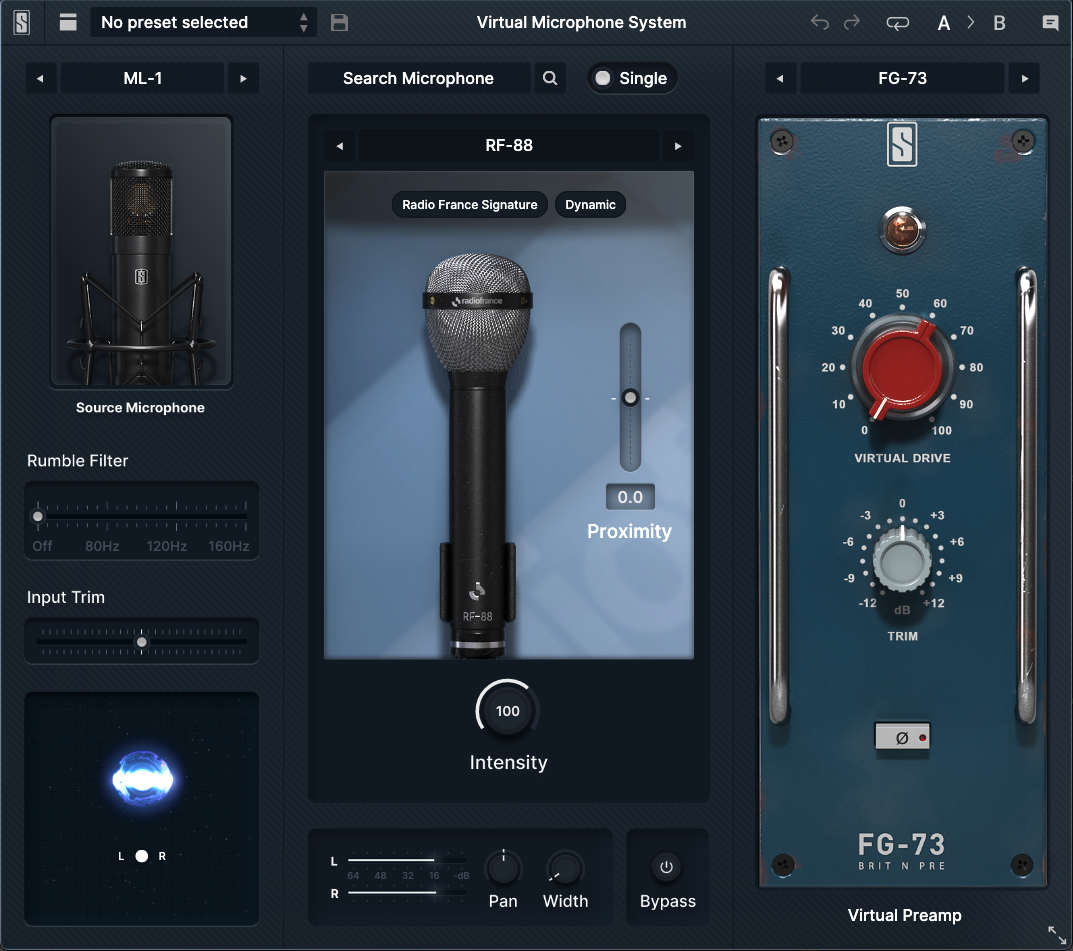
Above the image of the selected microphone model, you will see two tags relating to the selected microphone: Its Expansion Pack name and microphone Type. For example, this could be “Radio France Signature” as the Pack name and “Tube” as the microphone type. You can click these tags to toggle their selection on and off—when the selection is on, scrolling will be limited to microphones that fall within the selected tags. For example, if you enable the “Tube” tag, scrolling through mics will be limited to Tube types—the Dynamic, Condenser, and Ribbon mics will be skipped.
If you want to add further color and saturation to your recording, you can also choose to load one of the virtual preamp models in the right-most slot of the Virtual Microphone System plug-in. You can adjust the amount of virtual drive of the preamp, as well as flip the phase and adjust the output trim at this stage.
Recording
Once setup is complete, you can proceed to record as you normally would with your DAW. The workflow remains the same as with any other microphone you use to record.
Changing the Microphone and Preamp After Recording
One excellent benefit of the Virtual Microphone System is that you can change the microphone and preamp models and their settings after you’ve made your recordings!
Unlike using a normal microphone, you don’t need to worry about which microphone model you choose at the time of recording or how the preamp was set! Often times, what might sound good during the initial recording stages might not sound as appropriate during the mixdown stage of your project. If that’s the case, you can change the microphone and/or preamp model to something that is more complimentary to your final mix.
Simply re-open the Virtual Microphone System plug-in and change the microphone model and/or its settings and you’ll immediately hear the results of the new choices. Furthermore, since each audio track recorded with the Virtual Microphone System has its own, unique instance of the Virtual Microphone System plug-in loaded on it, you can choose different microphone models, preamps, and settings for all of them! Perhaps one microphone model gives the lead vocal the clarity and presence needed to sit in the front of the mix while another microphone model softens a background vocal to sit comfortably behind the lead vocal and provide support. Feel free to experiment—the Virtual Microphone System provides ultimate flexibility and choice right up until you bounce your final mix.
Tips and Tricks
Setting the Input Gain on your Audio Interface
When setting the Input Gain on your audio interface, do so when playing the loudest section of your performance. That is, a singer should try singing at the maximum volume or the instrumentalist should try playing as loudly as they intend.
While the performer is performing these loud sections, set the Input Gain such that the input audio level doesn’t ever exceed -12dBFS. While it is good to get the Input Gain set to a moderately high level, some amount of headroom should always be maintained as it is a common phenomenon that performers will still perform more loudly “in the heat of the moment” while recording compared to what they do during the initial practice and setup. Therefore, keeping some headroom during the initial setup will ensure that these louder performances aren’t ruined due to overload distortion during recording. If you’re recording in 24-bit format, you can even be more liberal with your headroom (for example, not exceeding -20dBFS) without sacrificing audio quality.
Furthermore, input meters are often “slow” and tend to show an average input level. Very sharp (short and loud) transients can be missed by the meters but still cause distortion when your audio interface converts the analog signal into digital. Preserving recording headroom will help ensure that these transients are captured cleanly and accurately without distortion.
Setting the INPUT and OUTPUT TRIM in the VMS Plug-in
Due to how some of the microphone models behave, the output signal from the Virtual Microphone System plug-in can actually be louder than the signal going in to it. Preserving some headroom when recording, as described in the previous section, will help prevent any overload in the plug-in.
However, if overloads do still occur even with the above precaution, you can reduce the INPUT TRIM slider in the Virtual Microphone System plug-in to add headroom and/or reduce the OUTPUT TRIM in the plug-in to reduce the level going in to subsequent plug-ins in your DAW.
Rumble Filter
The Rumble Filter can be used to remove extremely low frequencies that might be picked up by the microphone, depending on your recording environment (such as ventilation systems, outside road noise, etc.). You can either adjust this slider directly to dial in a specific frequency, or you can click on the OFF, 80Hz, 120Hz, and 160Hz labels to snap to these standard filter values.
Intensity
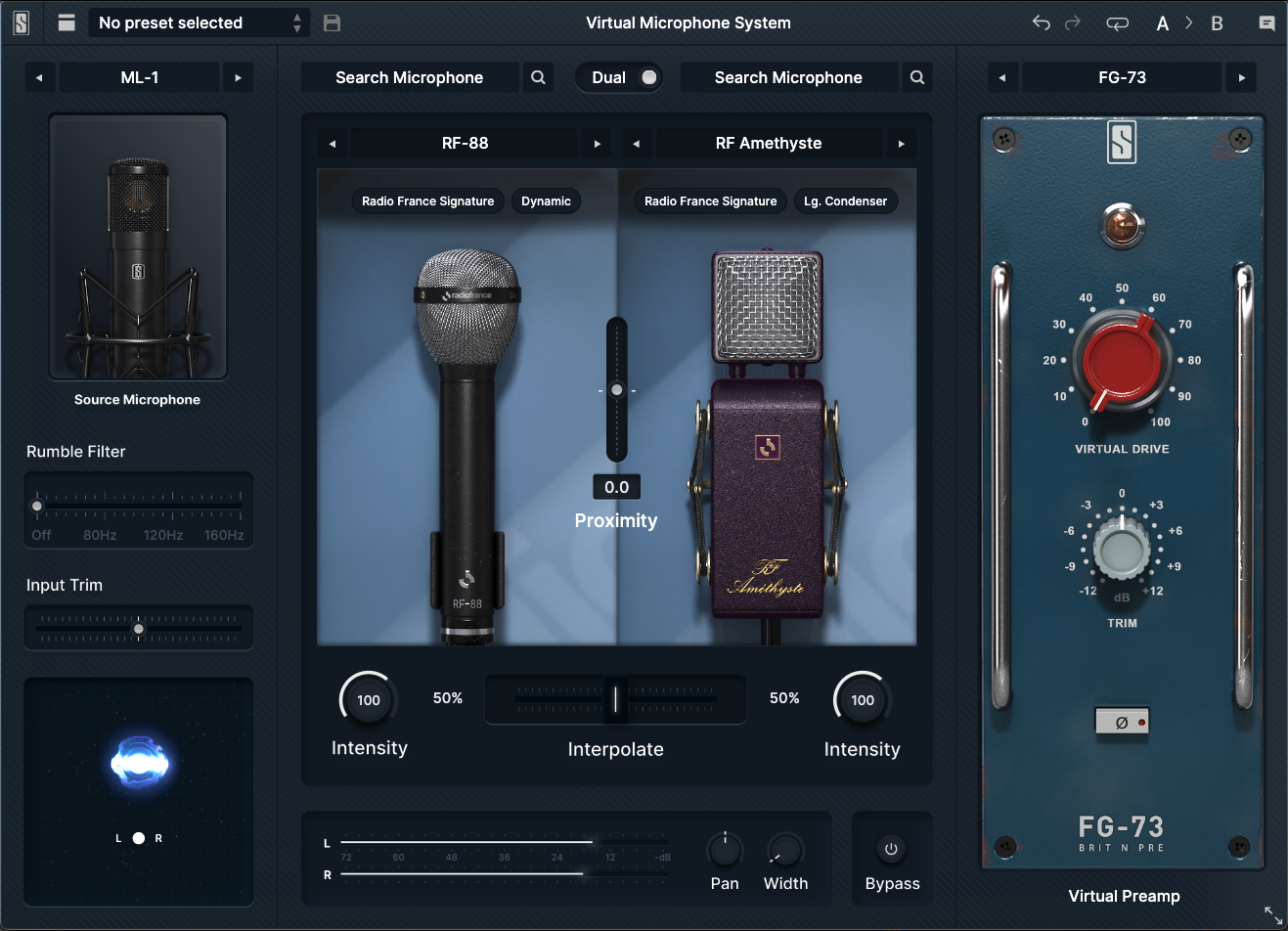
The Intensity knobs can be used to adjust how much of the selected microphone model is applied to the audio. At 100%, the model is applied accurately. With values less than 100%, more of the original characteristics of the input audio will be heard. With values over 100%, the unique characteristics of the microphone model will be exaggerated.
Proximity
The Proximity slider can be used to recreate the “proximity effect” which occurs when the microphone is placed close to a sound source. Increasing this value (moving the slider up) will typically add more bass frequencies as would happen when putting the mic close to the source. Conversely, decreasing the value (moving the slider down) will reduce frequencies as if the mic was moved farther from the source.
Dual Mic Mode
You can experiment with a virtually limitless number of microphone models by blending the characteristics of two different microphones to create a new hybrid behavior. Flip the “Single” switch over to the “Dual” position to expose a second microphone. Select another model for the right-hand microphone, and then use the Interpolate slider to “morph” the behavior between the two mic models.
Width
Turning up the Width knob will cause the sound to magically spread out in the stereo spectrum. This is an excellent trick to use on background vocals as you can then leave the lead vocals front and center in the mix; the extra width on the background vocals will help move them back a bit and provide the correct support to the lead without stealing the spotlight. And don’t be afraid to use this knob, even on some instruments! This particular width algorithm is designed to be mono-compatible so there won’t be any phasing or cancelation issues if your music ends up being played on a monaural system (phones, Bluetooth speakers, etc.).
Getting to Know the Mics
ML-1 & ML-1A Compatible Models
Radio France Signature
RF-BB6
This large-diaphragm tube mic delivers a rich, warm tone with the depth and character needed to make vocals shine. Classic warmth meets modern clarity—perfect for capturing every nuance in the studio.
RF-42B Voix/ RF-42B Musique
The biggest ribbon mic ever made, offering a distinct warmth and depth that adds character to any vocal performance.
RF-88
This dynamic mic brings the punch and attitude you need for high-energy vocal performances. Packed with raw power, this mic’s clarity and character are perfect for cutting through the mix.
RF-21B
This mic’s unmatched durability and crystal-clear sound quality quickly made it an indispensable recording tool upon its introduction. It even became the standard mic for French field reporters, appearing on countless television broadcasts since.
RF-149
This mic delivers warmth and depth, bringing out the full range of your guitar’s natural sound for a richer, more balanced recording. It’s particularly good at capturing the deep, resonant low tones commonly found in acoustic instruments.
RF-H64 / RF-H64 Bonnette
The RF-H64 excels at capturing the intricate harmonics and subtle details of your playing, providing a clear and balanced sound that highlights the instrument’s true character. Whether you’re recording soft fingerpicking or dynamic strumming, the RF-H64 delivers a beautifully detailed and expressive tone that feels authentic and full.
RF-Améthyste
This is a hand-built microphone engineered for exceptional detail and responsiveness. Delivering a lightning-fast transient response and crystal-clear trebles, capturing every nuance with stunning accuracy.
RF-X25
This is a premium microphone designed for pristine detail and transparency. Featuring a class-A transistor circuit and a uniquely engineered diaphragm, it delivers an incredibly fast transient response and ultra-detailed trebles, capturing every nuance with precision.
RF-E20
This versatile dynamic microphone is not only great for recording bass-heavy instruments, it’s gained a well-earned reputation as a mic for voice, broadcast, and interviews thanks to the way it accentuates bass frequencies via its proximity effect.
RF-7B
Another indispensable mic model for voice and podcasts, this dynamic mic is shaped well to the human voice providing excellent intelligibility without any ear-fatiguing sibilance. It also has a great bass boost using the Proximity control.
Classic Tubes
FG-47
The FG-47 recreates the sound of one of the most famous vintage tube microphones in the history of audio. It has a thick and full-bodied low end, rich and present mid-range, and smooth top end. This microphone sounds great on thick lead vocals, but also sounds incredible as a kick drum mic, room mic, guitar mic, and on horns and strings.
FG-800
The FG-800 recreates the sound of one of the most popular modern tube mics, known for being the go-to choice for pop and hip hop vocalists. It’s extremely bright and airy, but with a warm bottom end. Using this mic on vocals will give you an instant polished ‘pop’ sound. However, this mic also sounds great on overheads and acoustic guitar.
FG-251
The FG-251 recreates the sound of one of the most sought-after vintage tube mics in the industry. It’s one of the most in-demand lead vocal mics on the planet, known for being crisp, warm and flattering on a variety of voices.
FG-67
The FG-67 emulates a vintage German classic known for being slightly dark, bold and thick. This mic is amazing on vocals, rooms, horns and piano, and it’s a favorite on toms!
FG-12
The FG-12 emulates an Austrian classic known for being incredibly smooth and rich-sounding. We chose an incredible version of this mic to model – it’s the perfect representation of this famous tone.
FG-M7
The FG-M7 takes one of the most famous dynamic vocal mics used in the studio by artists like Michael Jackson and adds the tube stage of the classic 47, making it extremely punchy and crisp, with incredible mids that cut through the mix.
FG-800M
The FG-800M emulates an older Japanese tube mic, and is slightly fatter and darker than the stock FG-800. If you love the FG-800 but wish it was a tad less sibilant and bright, you’ll love this.
FG-269
The FG-269 emulates an extremely rare German classic that shares much of the same circuit as the 67, but with a different tube that makes it more open and clear. This is one of the best-sounding vocal mics we’ve ever heard.
FG-47 MKII
Modelled as the stock VMS 47, but with a slightly smoother upper midrange and top, along with a fatter low mid. All about vintage vocal tones!
FG-67 MKII
Complimentary update to the brighter stock 67 in the VMS range, this darker model adds vintage tone to vocals, piano and brass.
FG-44
The first VMS model of a classic ribbon mic, but in cardioid form, with an added custom tube stage to deliver more tube harmonics and subtle saturation.
FG-37A
A recreation of a famous vintage Japanese tube microphone. This mic is one of the most flattering sounding microphones in the entire collection.
FG-49
Classic German tube mic that shines on vocals and percussive instruments.
Blackbird Studio
B-47
This 47-style classic mic gives vocals and instruments a gorgeous, round tone that’s full of presence and detail with zero harshness. Always in demand by a wide variety of musicians—from vocalists to drummers & more.
B-251
Modelled on the legendary mic that reserved only for country superstar Martina McBride. Now the go-to mic for today’s top vocalists.
B-67
With a slightly darker, thicker sound, this 67-style mic has been a vocal favourite of artists from The Beatles to Frank Sinatra.
B-12
Boasting smoother highs and flatter lows than the original classic tube microphone, the B-12 places any vocal perfectly in your mix.
B-49
Originally built for vocalists, this new adds more depth giving vocals and instruments alike a warm, full tonality.
Classic 87
SD-87 MKI
The vintage-flavoured 87 with added warmth and classic character.
SD-87 MK II
The newly purchased 87 with exquisite detail and clarity.
SD-87 Ai
Our modern iteration of the classic 87 with a flat response and subtle 10kHz boost.
Strongroom London
SD-414 BU
A reference-quality 414-style mic that excels on vocals, piano, percussion, and pretty much everything else.
SD-414 EB
A 414-style mic tailor-made for vocals and acoustic instruments.
SD-12 VR
A C12-style tube mic with an upgraded capsule; a true holy grail microphone.
SD-47 FET
Originally beloved as the most versatile vocal mic in the industry, this 47-style mic is great for bright, high-SPL sources, as well as upright bass and bass amps.
SD-4038
A 4038-style mic that is quintessentially “British”; famously used by the Beatles as drum overheads.
ML-2 & ML-2A Compatible Models
Radio France Instruments
RF-84
The classic German small-diaphragm condenser with even frequency response.
RF-K41
A relatively flat response with gentle rolloff starting around 200Hz.
RF-BB1
The B1 small-diaphragm capsule delivers sonic accuracy with extended high-frequency response.
RF-409
A clip-on mic with a frequency response optimized for use with horns.
RF-TG50
A large-diaphragm dynamic microphone intended for use on kick drum and other bass instruments.
RF Cristal
Designed for harmonica, this microphone features a crystal pickup which is a first for VMS.
RF-CM4
A flat frequency response for voice or instrument, and is often used in stereo arrays.
RF-609
Designed for miking guitar cabinets face-on and extremely close to the source.
Classic Instruments
S-47F
This famous German FET microphone model is known for round highs, fat mids, and huge low end. It’s a standard on kick drum and bass cab, but also sounds great on toms.
S-67
This is actually a model of a large diaphragm tube mic! It has smooth and slightly dark highs, thick mids, and big lows. Great on room mics, overheads, toms, snare, guitars, basses, and everything else!
S-7
This is a dynamic mic that became famous as a broadcasting microphone, but its present mids make it ideal for all sorts of instruments such as kick, toms, snare, guitars, bass, and more.
S-E20
This is a model of a dynamic microphone that became popular in the seventies. It has a very even frequency response while remaining fat-sounding, so it can be useful on all sort of different sources – from vocals and electric guitar to kick drum.
S-57 Vintage
This model is a recreation of an early 80’s dynamic 57, perhaps one of the most famous dynamic microphones in audio history. It’s known for its punchy midrange and smooth top end, which is why it is a top choice on guitar and snare drum.
S-Custom Snare
This is a modified version of the S-57, with added curves from famous EQ’s to enhance the sound, producing the ultimate polished snare sound.
S-57 Modern
A brand new dynamic 57, this mic sounds very similar to the vintage model but with slightly smoother mids and more sizzly highs.
S-112
This is a model of a famous modern kick drum microphone. It has a classic “bouncy” midrange and fat low end.
S-112B
This is the same emulated mic as the S-112 captured from inside the kick drum itself.
S-421
Another classic dynamic mic, this model is perfect on toms, kick, guitar cab, bass cab, and horns. It has thick low mids and punchy lows.
S-Custom Tom
This is a modified version of the S-421 that adds more highs and lows, and has less low mid, creating the ultimate tom sound for both rack and floor.
S-414 Normal
This is a model of one of the most famous FET large diaphragm mics. It has clear punchy mids, slightly extended highs, and a very fat low end. It’s perfect on overheads, guitar cabs, bass cabs, toms, and horns.
S-414 Dynamic
This emulation is the same as the S-414 Normal, only it has been optimized for use with the ML-2 when it’s in Dynamic mode. Use this model and the ML-2’s Dynamic mode when micing very loud sources.
S-12
This is a model of a vintage kick drum microphone. It has a crisp top, fat low mid, and warm bottom end.
S-Custom Kick
This is a modified version of the S-12 that adds more attack and punch, with less low mids and more defined lows.
S-121 Normal
This is a cardioid model of the classic ribbon mic, and like the real thing, it has fat lows and slightly dark highs, making it perfect on horns, strings, room mics, guitar cabs, and overheads.
S-121 Dynamic
This emulation is the same source microphone as the S-121 Normal, only it has been optimized for use with the ML-2 when it’s in Dynamic mode. Use this model and the ML-2’s Dynamic mode when micing very loud sources.
S-222
This is a model of a famous small diaphragm tube mic. It’s bright but not harsh, with a smooth midrange and flat low end. It’s ideal for drum overheads, acoustic guitars, and string instruments.
S-451
This is a model of a famous small diaphragm condenser that is smooth and clear, with a beautiful high end. It’s great on snare, overheads, hi hat, toms, and guitar cabs if paired with one of the dynamic models.
Drum Pack
RF-441
A highly detailed dynamic microphone built to capture drums with precision and control. Its tight low end, articulate mids, and refined top make it exceptional on snare and toms, delivering clarity and punch without harshness. Equally at home on vocals and instruments, it offers a polished, studio-ready sound across the board.
RF-21B Modern
Originally designed for broadcast and widely used by reporters, this dynamic mic became a staple thanks to its clarity, focus, and exceptional rejection. But over time, engineers discovered it had another talent… on snare drums. Its tight response and crisp attack capture the snap and body with surprising precision, making it a hidden favorite in the studio. Reliable, controlled, and unexpectedly musical, it bridges the gap between broadcast clarity and drum performance.
RF-B52
Engineered for deep, powerful low-end capture, this dynamic mic brings weight and impact to any bass-heavy source. With a sculpted frequency response and punchy attack, it’s built to deliver massive tone while keeping definition intact.
RF-604
Compact and focused, this dynamic mic excels at capturing fast transients and tight, punchy tones. Its controlled low end and crisp attack make it a go-to choice for close-miking drums and percussive instruments.
RF-AX2
Designed for clarity and precision, this dynamic mic delivers a balanced tone with a smooth midrange and natural attack. It’s especially effective on toms and percussion, offering detailed articulation without harshness.
RF-AX4
With extended low-frequency response and a fuller body, this mic brings depth and weight to larger drums and low-end sources. It maintains clarity while adding a rich, rounded tone that sits perfectly in the mix.
RF-AX6
Built for aggressive low-end capture, this mic delivers deep, punchy bass with a modern, sculpted edge. Its enhanced attack and tight lows make it ideal for kick drums and high-impact sources that demand both power and precision.
RF-AX5
A versatile dynamic mic with a punchy midrange and crisp top end, perfect for capturing the energy of snare drums and guitar amps. It delivers presence and bite while maintaining a balanced, musical tone.
RF-AX51
This small-diaphragm condenser offers pristine detail and fast transient response, capturing every nuance with clarity and precision. Its open top end and natural balance make it ideal for overheads, acoustic instruments, and detailed studio work.