Infinity Horizon
Welcome to the next level of resonance suppression.
INFINITY HORIZON is a resonance suppression plug-in which can help smooth and control harsh, brittle, or boomy audio recordings. It constantly monitors the input audio’s frequency spectrum and quickly attenuates errant or overblown frequencies to provide a more consistent sonic shape. It can adapt to evolving audio recordings or can be configured to work with fixed audio fingerprints taken either from the built-in frequency curves or by training it on sections of audio with the Learn function. It works in either a wide-band or multi-band modes to give you speed or precision when dealing with difficult audio.
INFINITY HORIZON is included in the Complete Access subscription and is also available to users who have purchased a perpetual license through our Shop. You can install the plugin via the Complete Access Hub or by downloading the installer from our installers page.
Quick Start
INFINITY HORIZON can be used on vocals for sibilance, guitars or synths for harsh mids, drums for ringing or cymbal fizz, and even lightly on the mix bus for polish.
Load INFINITY HORIZON as an insert effect on your audio track:
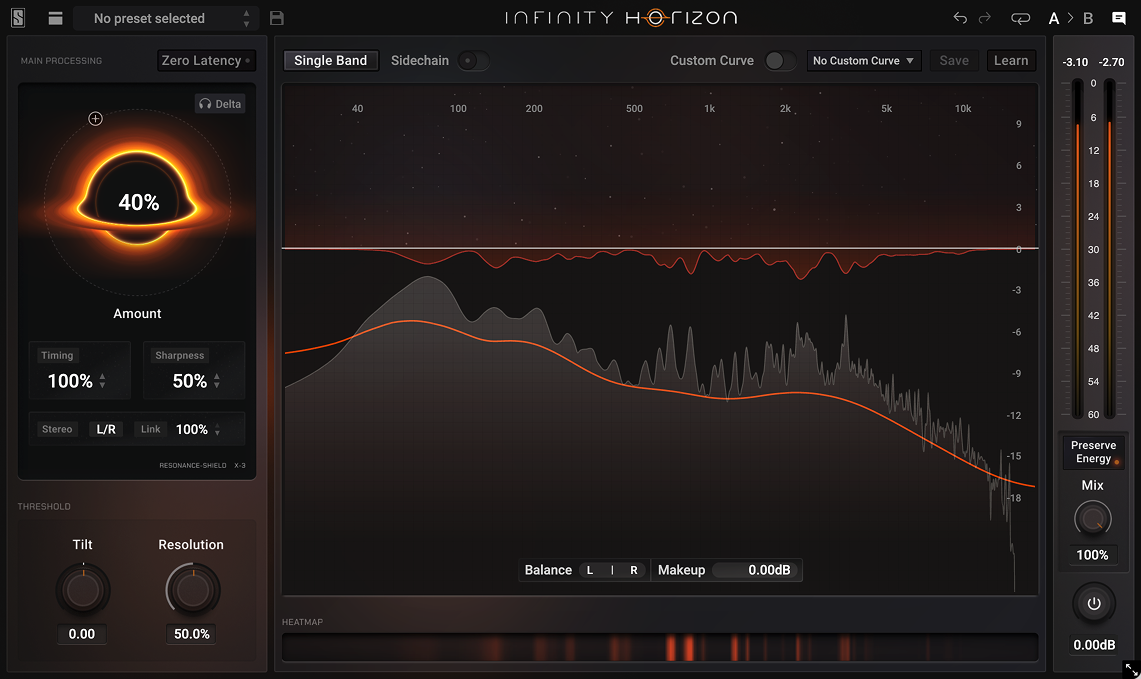
First, set the AMOUNT parameter to adjust how much resonance suppression you want. Once it’s done, you can use the TIMING and SHARPNESS parameters to control how quickly and narrow/wide INFINITY HORIZON will process sound.
If you want to target only a part of the frequency spectrum, you need to switch to Multi Band Mode by clicking on the button which is in the top left of the plugin window. Then you’ll be able to process audio more precisely by deactivating bands that are not needed and keeping only the ones you need.

But don’t stop there! Infinity Horizon goes far beyond simple resonance control. Once you explore it, you’ll discover new ways to make your mixes smoother, cleaner, and effortlessly balanced. Ready to take your clarity to the next level?
Controls & Indicators
The following sections will detail the various components and controls in INFINITY HORIZON in an order that mirrors their order and/or significance in the operation of the plugin. Reading these sections in the order presented will help you get a better understanding of how the plugin works and understand which parameters to tweak to get the best results for your various use-cases.
Frequency Analyzer Window
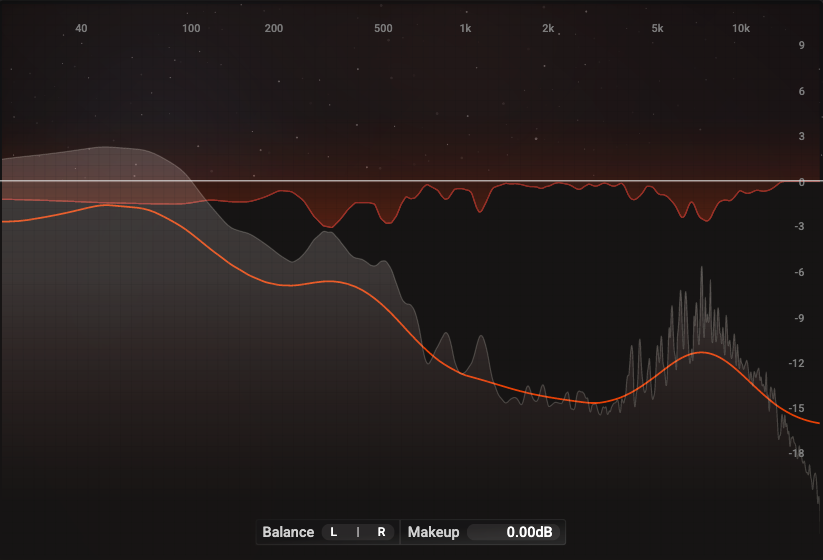
The majority of INFINITY HORIZON is dedicated to the large, rectangular FREQUENCY ANALYZER WINDOW which, itself, contains multiple displays detailing the current operation of the plugin:
Input Frequency Spectrum
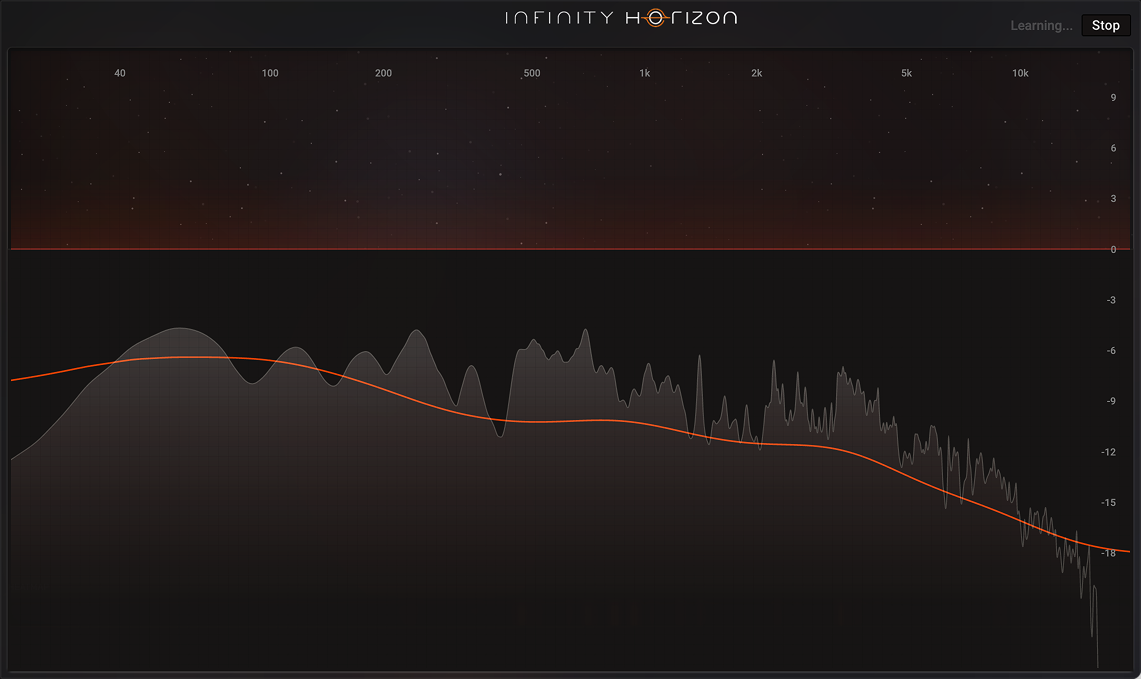
The grey area that rises from the bottom of the window is a realtime representation of the frequency spectrum of the incoming, unprocessed audio. This essentially shows what INFINITY HORIZON is hearing.
Threshold Curve
There is a orange line passing from left to right whose shape will change based on various conditions and actions which is a frequency-specific Threshold Curve. Unlike a traditional audio compressor which merely responds to the total volume of the input signal, INFINITY HORIZON is responding to the various frequencies individually. For this reason, the input loudness will vary across the frequency spectrum, and this Threshold Curve represents those changes. It can be thought of as a type of frequency fingerprint or frequency target for the processing.
By default, the Threshold Curve changes shape in response to the incoming audio establishing an average shape for the audio. The shape of the Threshold Curve can also be fixed by using factory-supplied curves or learning your own—more information on both these methods will come later in this document.
Gain Reduction Curve
A red shape, similar to the Input Frequency Spectrum, will begin to appear near the top of the window when INFINITY HORIZON is attenuating frequencies. Unlike the Input Frequency Spectrum which rises from the top, the Gain Reduction Curve extends downwards as attenuation is applied. You can therefore see which frequencies INFINITY HORIZON is attenuating at any moment as well as how much attenuation is being applied to them.
The Gain Reduction Curve is actually two curves layered on top of one another: A Left and a Right Reduction Curve, or a Mid and a Side Reduction Curve, depending on whether INFINITY HORIZON is in Stereo or Mid/Side mode (detailed later in this document).
THRESHOLD Offset
While INFINITY HORIZON doesn’t operate exactly like a compressor and uses auto-gaining in the audio analysis stage, there is still a THRESHOLD Offset control which can be dragged up and down in the Frequency Visualizer Window. Dragging this control downwards will lower the threshold, thus increasing the likelihood of frequency attenuation; moving it upwards will have the opposite effect.
When INFINITY HORIZON is in Multi-Band mode, there will be four independent Threshold Offsets you can adjust, one for each of the frequency bands. When in the default single-band mode, there is just a single Threshold Offset spanning the entire frequency range.
BALANCE Slider
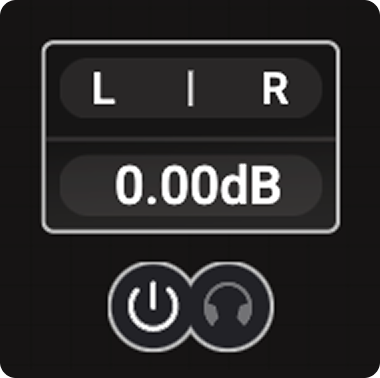
Using the Band Balance slider, you can make the particular band favor suppression more on one channel vs. the other. For example, when in L/R mode, moving the Band Balance slider towards the left (L) channel will reduce the amount of suppression applied on the right channel in this band. Similarly, when in M/S mode, moving the slider towards the side (S) channel will reduce the amount of suppression applied to the mid channel within the band.
MAKEUP Value
If you’re performing heavy suppression, it can have the effect of reducing the apparent loudness of that band. Use the MAKEUP value to compensate for the change in loudness.
When using INFINITY HORIZON in Multi-band mode (see below), there will be a MAKEUP value for each band.
MULTI BAND Mode
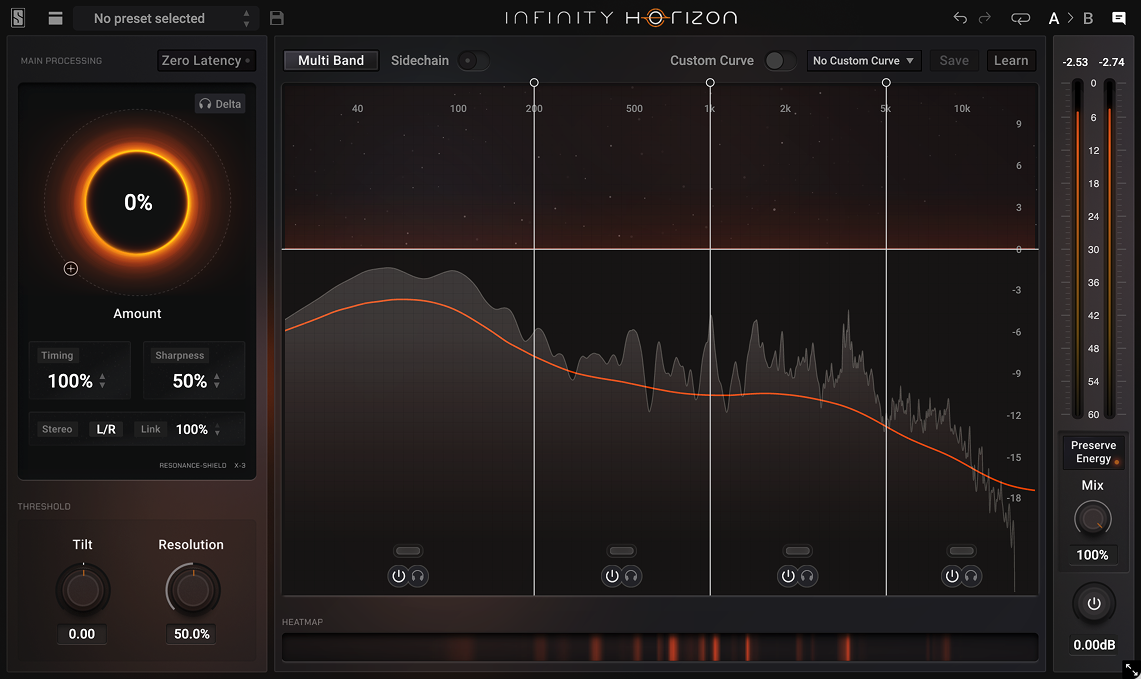
When switching INFINITY HORIZON into MULTI BAND Mode, analysis and application of frequency suppression will be performed over 4 different bands whose widths you can adjust. Hover the mouse over any of the vertical lines and then click-and-drag left and right to adjust the frequency split between the two adjoining bands.
BAND DISABLE Button
When in Multi-band mode, each band can be individually enabled and disabled. If there is a particular range of frequencies that don’t require any suppression, you can disable the bands around this area—no suppression will be applied within the band while it is disabled.
BAND LISTEN Button
Enable the BAND LISTEN (button with a headphone icon) to hear only the associated band—you can hear just the frequency area the band is affecting.
Frequency HEAT MAP
Just below the Frequency Analyzer Window is a display strip that is the Frequency HEAT MAP. In this area, vertical lines will begin to appear wherever INFINITY HORIZON detects strong frequencies building up over time; this can sometimes indicate an area of the frequency spectrum that could benefit from some resonance suppression.
To help you determine if the indicated area contains unwanted frequencies or not, you can click and hold your mouse on a location in the Heat Map to enable a temporary Frequency Preview where only the audio within a tiny range of frequencies around the mouse position will be heard. You can drag this area left and right to inspect the audio spectrum seeking out the location of problematic frequencies. Release the mouse button to exit the preview at which point full-spectrum audio will resume.

Threshold Curve Refinement
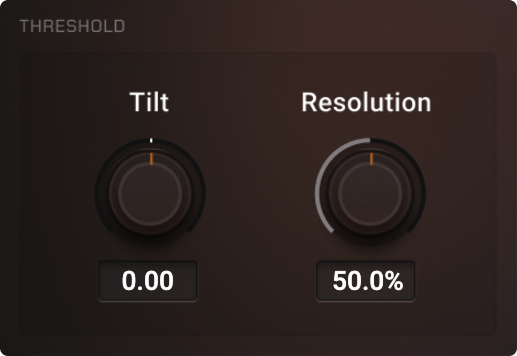
In the lower-left area of INFINITY HORIZON are two knobs which refine the shape of the red Threshold Curve seen in the Frequency Analyzer Window. These two controls work regardless of whether you use a Custom Curve or use the automatic behavior. As mentioned earlier, the Threshold Curve is essentially the target “sonic fingerprint” that INFINITY HORIZON is using for determining where and when to apply frequency suppression. Setting the shape of this Curve appropriately will improve the final performance of the plugin.
TILT Knob
The TILT Knob will essentially rotate the Threshold Curve around its middle point. Rotating TILT counter-clockwise will also cause the Threshold Curve to move counter-clockwise which will lower the Curve on the bass side of the frequency spectrum while raising it on the treble side of the spectrum. Rotating it clockwise will have the opposite effect of raising the curve on the bass side while lowering it on the treble side. This essentially overrides the shape of the curve which will cause INFINITY HORIZON to suppress frequencies more aggressively on one side of the spectrum vs. the other. It can also help tailor the factory-supplied Curves to your particular audio content.
RESOLUTION Knob
This knob controls the amount of detail and precision in the Threshold Curve. Turning the knob clockwise will increase the detail, exposing more hills and valleys, in the Curve. Turning it counter-clockwise will smooth the Curve to be more generalized; at the fully counter-clockwise position, the Threshold Curve will become a straight line that follows the frequency profile of pink noise.
Main Processing
AMOUNT Knob
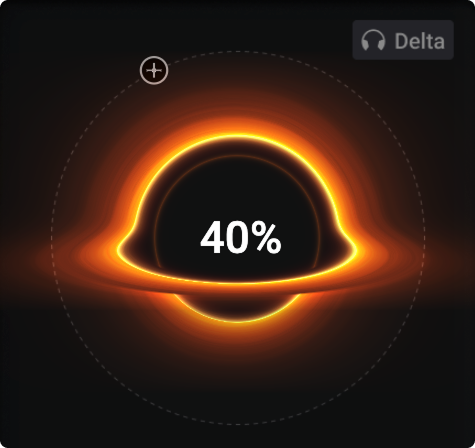
The most important control in INFINITY HORIZON is the AMOUNT knob which is visually represented with a morphing black hole graphic in the upper-left area of the plug-in. When AMOUNT is at 0%, no suppression will be applied; the amount of suppression will become stronger the more the AMOUNT is increased. You’ll see the Gain Reduction Curve begin to appear and move in the Frequency Analyzer Window as the AMOUNT knob introduces suppression.
TIMING Value
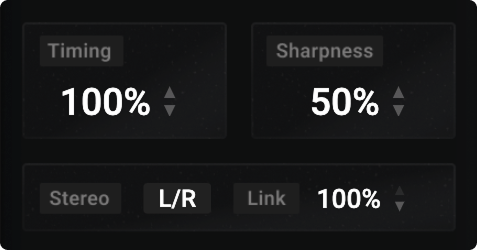
The TIMING value controls how quickly INFINITY HORIZON responds to sharp frequencies it detects; it governs how fast the Gain Reduction Curve moves. At its default value of 100%, the response is already very fast, responding almost instantly to frequency spikes; reducing the TIMING value will essentially make the release timing faster so that frequency suppression ends quicker after the offending frequencies disappear. Increasing TIMING above 100% slows down the release time, and will also slow the attack which will allow the initial transient of frequencies to pass through before suppression kicks in.
SHARPNESS Value
The SHARPNESS value is similar to the RESOLUTION knob, explained earlier, but applies to the Gain Reduction Curve instead of the Threshold Curve.
When INFINITY HORIZON detects a resonant frequency, it will apply attenuation to it. The SHARPNESS value determines how many of the neighboring frequencies are also attenuated in the process. With a low SHARPNESS value, the offending frequency and many of its neighbors will be attenuated resulting in a Gain Reduction Curve that is relatively smooth. With a high SHARPNESS value, fewer neighboring frequencies will be attenuated resulting in a Gain Reduction Curve that has a more spiky shape.
If you think of INFINITY HORIZON as being comprised of hundreds of parametric EQs, the SHARPNESS is similar to the bandwidth (or Q) of those EQs—lower values makes the bands wider while higher values makes them narrower.
STEREO Selector
Use the STEREO selector to switch between the default Left/Right (L/R) configuration or the secondary Mid/Side (M/S) configuration:
- L/R: In this mode, the detection and gain reduction are performed on the left and right audio channels separately.
- M/S: In this mode, the detection and gain reduction are performed on the middle and side channels separately.
In normal use, L/R is often the better choice when processing individual instruments, especially things like stereo guitar tracks, stereo drum overheads, or room mics. The M/S option is often the better choice when processing mix busses, be it an instrument submix or the master bus, so the left/right balance of the stereo mix remains fixed.
LINK Value
A high LINK value ensures that the gain reduction is applied identically to both channels, be it the left and right channels when using L/R mode, or the mid and side channels when using M/S mode, which can help reduce stereo anomalies where noticeably stronger suppression is applied to one channel but not the other.
As the LINK value is reduced, the gain reduction applied will become channel-specific. It then becomes possible for INFINITY HORIZON to apply strong suppression on one channel (such as the Left channel or the Mid channel) without performing unneeded suppression on the other channel.
Custom Curves
While INFINITY HORIZON loads up in automatic mode, you can use customized Threshold Curves to dictate the suppression behavior—this allows for a more precise and controlled suppression behavior.
CUSTOM CURVE Switch
Above and to the right of the Frequency Analyzer Window is the CUSTOM CURVE switch. When this switch is off, INFINITY HORIZON operates in an automatic mode where the Threshold Curve is constantly updated based on the input audio. When CUSTOM CURVE is switched on, then the automatic Threshold Curve will be replaced with a static, unchanging curve which is either taken from a list of curves or learned directly from input audio.
Note, just switch off CUSTOM CURVE at any time to revert INFINITY HORIZON back to automatic behavior.
CUSTOM CURVE Menu
The saved Custom Curves can be recalled from the drop-down menu. The supplied Factory Curves are found here along with any saved User Curves. Simply select one of them from the list to load it.
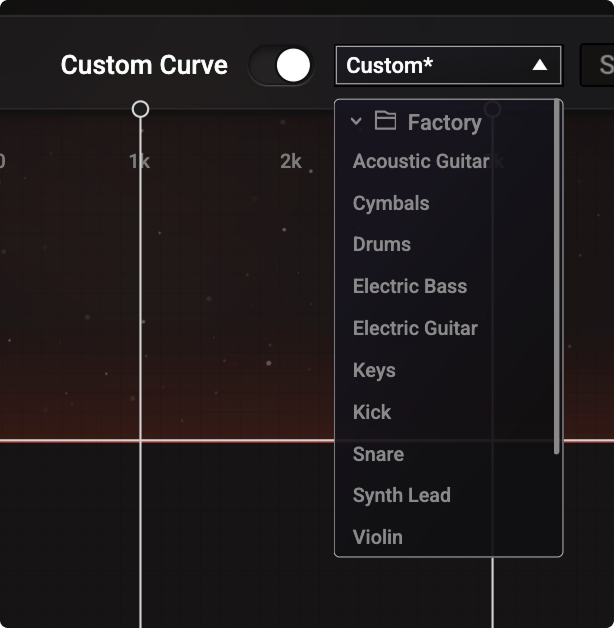
NOTE: You will not see any change to the Threshold Curve when loading Custom Curves if the Resolution knob is set to 0%.
LEARN Button
Clicking the LEARN button will start creating a new Threshold Curve. INFINITY HORIZON will listen to the audio input for as long as LEARN is enabled and generate a Threshold Curve. Click STOP when learning is complete and the new Custom Curve will be shown in the Frequency Analyzer Window.
Clicking LEARN again will discard any unsaved Custom Curve and begin learning a new one. However, it’s possible to retrieve the previous unsaved Custom Curve by using the undo button which is located in the plugin top bar.
Learning a curve can be a helpful technique when only a specific section of your audio is problematic. You can learn just the “good section” of the audio with the LEARN feature to create a proper Threshold Curve. Then allow that curve to be used on the bad section of audio, and the suppression will attempt to keep the spectrum closer to the shape of the Curve from the good section of audio.
You can also use the LEARN feature to create target Curves for various instruments that you record or mix often, growing the list of instrument-specific curves for you to recall.
SAVE Button
Clicking the SAVE button will open a dialog allowing you to provide a name for the Threshold Curve which will then be saved under the “User” category in the CUSTOM CURVE menu so you can use it again in the future.
Note that the Threshold Curve is always saved with full resolution, no matter how the RESOLUTION knob is set at the time of saving.
SIDECHAIN Switch
INFINITY HORIZON has a sidechain input which, when enabled with the SIDECHAIN switch, will cause the plugin to listen to the sidechain input when identifying resonant frequencies. Whenever resonant frequencies are identified in the sidechain audio, it will result in suppression of those frequencies in the main audio. You can use this technique to cut a “sonic hole” in the main audio, one that fits around the sidechain audio on another track.
When the SIDECHAIN switch is on, the Input Frequency Analyzer will show the frequency of the sidechain audio, not the main audio. However, the Threshold Curve will continue to follow the shape of the main audio passing through INFINITY HORIZON. Similarly, any listen features (like Band listen) will make the sidechain audio audible since it contains the frequencies that will potentially trigger suppression in the main audio.
ZERO LATENCY Switch
When the ZERO LATENCY is on, INFINITY HORIZON processes sound instantly without adding any delay between input and output. This means you can monitor or record in real time without timing shifts or phase issues. It’s ideal for live performance and tracking situations.
Since ZERO LATENCY requires more CPU power, users on older or less powerful computers may experience limitations or instability.

Output Controls
PRESERVE ENERGY Button
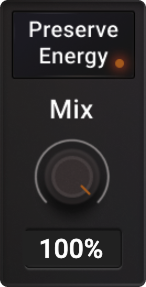
This toggle button engages a special stage that dynamically makes up for loss of loudness due to suppression. If INFINITY HORIZON applies particularly strong suppression at some point, the PRESERVE ENERGY feature will provide a subtle bump in loudness so that the entire track sounds consistently loud.
MIX Knob
Use this knob to adjust the balance between the unprocessed input signal (knob fully counter-clockwise) and the processed signal (knob fully clockwise). In most cases, you’ll just leave the knob fully clockwise to hear the full effect of INFINITY HORIZON.
OUTPUT Knob
The knob in the lower-right corner adjust the Output level of INFINITY HORIZON.
BYPASS Button
In the center of the Output knob is the BYPASS button (the “power” icon). Click this once to bypass INFINITY HORIZON (the plugin will turn grey when bypassed) and click it again to reenable the plugin.